
Adding A Campaign Platform
Platforms allow you to promote your services and products directly where your customers engage you. The types of platforms Pupsai currently support are:
Let’s get you connected, so you can be one step closer to getting MORE customers and MORE help!
To get started:
- Ensure you are logged in to your Pupsai account. For help logging in, refer to Login to Pupsai.
- Ensure you have subscribed to Pupsai. If you have not done so and need help subscribing, refer to Subscribing To Pupsai.
- You should be an admin of the platform accounts you are adding, and ensure that you have the right credentials (usernames, passwords etc.)
- You will be redirected to the platforms to enter your credentials, as such, we encourage you to either temporarily disable pop-ups and ad-blockers, or allow Pupsai to show you popups.
There are two (2) options that require you to add a platform; “Campaigns” and “Platform Engagement Analytics”. Below are directions from both places:
Adding a Platform for Campaigns
From your dashboard:
- In the navigation bar to the left of the page, select the “Campaign” menu option
- From the drop down menu, select “My Platforms”
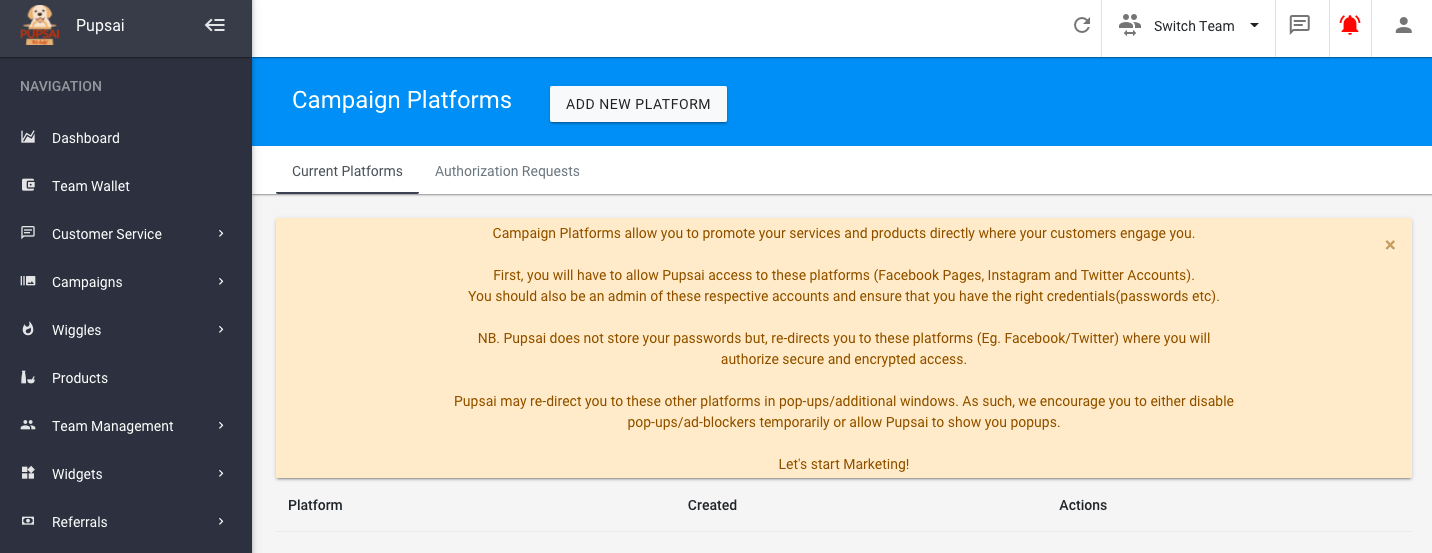
- You’ll be redirected to the “Campaign Platforms” page shown in the image below
- Click the “ADD NEW PLATFORM” button. Further instructions on how to add each platform (Facebook, Twitter, etc.) is given in the respective sections below.
Adding a Platform for Engagement Analytics
From your dashboard:
- In the navigation bar to the left of the page, select the “Wiggles” menu option
- From the drop down menu, select “Campaigns Analytics”
- Scroll down to the “Platform Engagement Analytics” section shown in the image below
- Click the “ADD PLATFORM” button
- You’ll be redirected to the “Campaign Platforms” page
- Click the “ADD NEW PLATFORM” button. Further instructions on how to add each platform (Facebook, Twitter, etc.) is given in the respective sections below.

Once you are on the “Campaign Platforms” page and have clicked the “ADD NEW PLATFORM” button, follow the instructions below:
Adding Facebook
- From the “Platform” drop down menu, select “Facebook”
- Click the “Continue with Facebook” button
- You will be redirected to enter your credentials
- Login to your account, then select the page(s) you wish to use and select “Next”
- In the next step, you will determine what Pupsai can do with the Pages you selected
- On the “Authorizing Facebook” Click the name of your Facebook page.
- Once the “successfully subscribed” message is seen, close the page and return to Pupsai
Adding Twitter
- From the “Platform” drop down menu, select “Twitter”
- Click the “Authorize Using Your Twitter Account” button
- You will be redirected to enter your credentials
- Login to your account, then select the page(s) you wish to use
- Once the “Added new twitter Message Channel” message is seen, close the page and return to Pupsai
Adding Instagram
- From the “Platform” drop down menu, select “Instagram”
- Click the “Continue with Facebook” button. N.B. We only securely access Instagram Business accounts through approved Facebook methods.
- You will be redirected to enter your credentials
- Login to your account, then select the page(s) you wish to use and select “Next”
- In the next step, you will determine what Pupsai can do with the Pages you selected
- On the “Authorizing Facebook” Click the name of your Facebook page.
- Once the “successfully subscribed” message is seen, close the page and return to Pupsai
Once you have added the platform(s), you will be able to:
- See a list of your platforms
- Edit your platforms
- Delete your platforms
