
Adding a Product
Let’s get you one step closer to getting MORE customers and MORE help!
To get started:
- Ensure you are logged in to your Pupsai account. For help logging in, refer to Login to Pupsai.
- Ensure you have subscribed to Pupsai. If you have not done so and need help subscribing, refer to Subscribing To Pupsai.
- Have your product information ready
There are two ways to add new products to your Pupsai Account:
- From the “Campaigns” section, and
- From the “Products” section
Adding Products from the “Campaigns” Section
From your dashboard:
- In the navigation bar to the left of the page, select the “Campaigns” menu option
- From the drop down menu, select “Add Products”
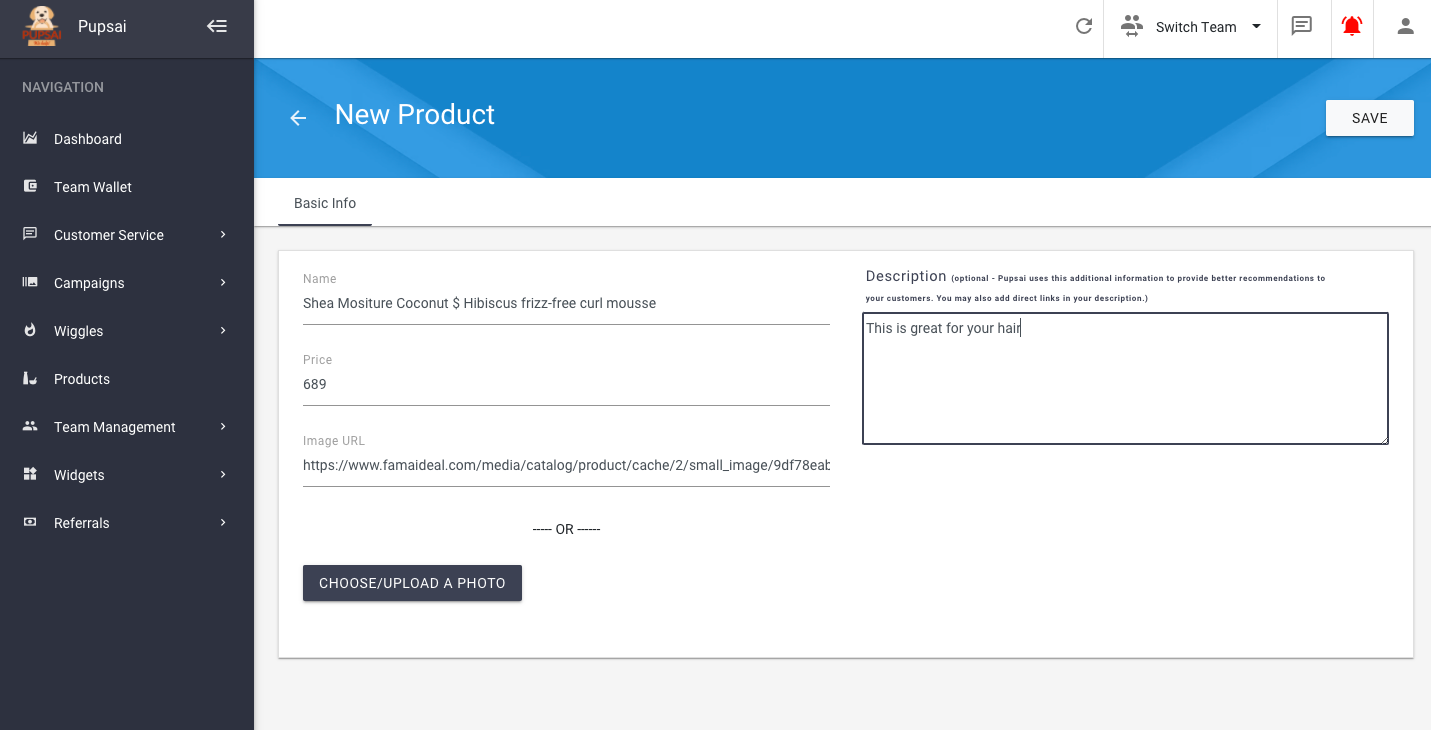
- You’ll be redirected to the “New Product” page
- Enter the details requested for your product. See image below
- Click the “Save” button
- An orange button to preview how your customers will see the product will appear in the bottom right of the screen, you may view it if desired
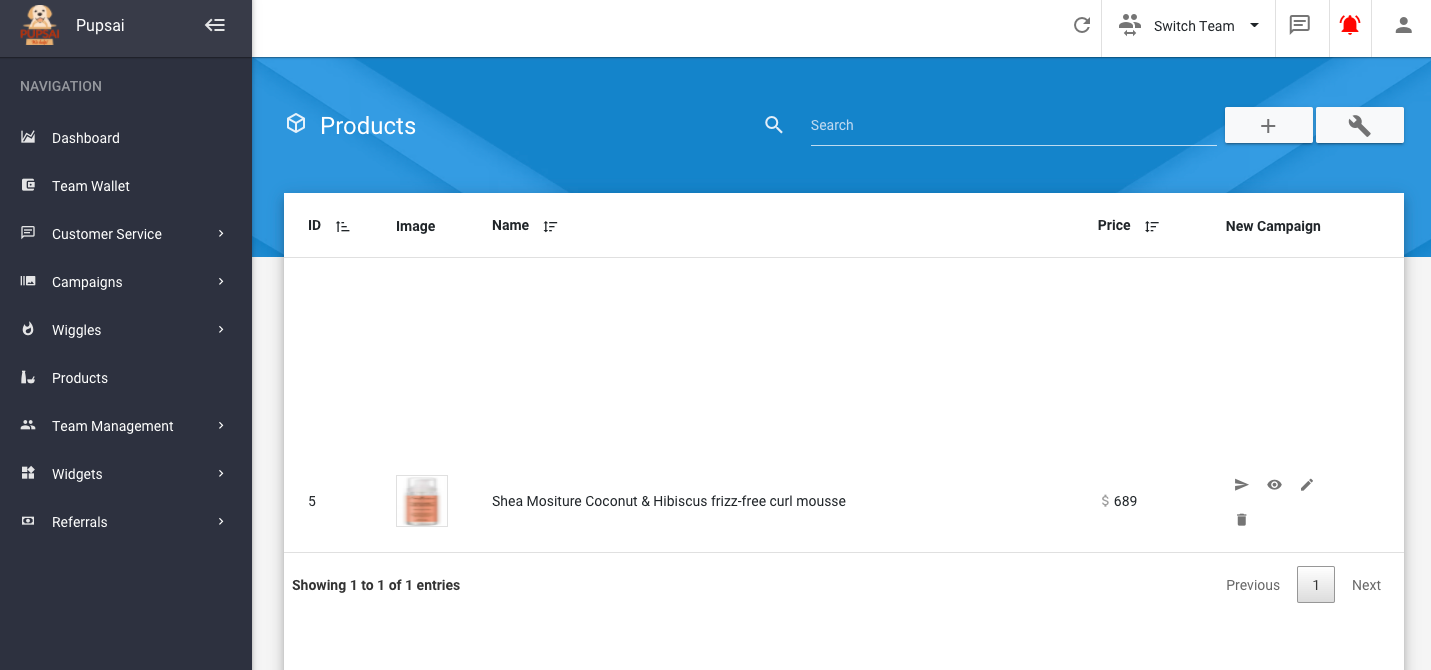
- Click the back arrow to view a list of all your products, where you can also edit, delete or schedule campaigns
Adding Products from the “Products” Section
From your dashboard:
- In the navigation bar to the left of the page, select the “Products” menu option
- You’ll be redirected to the “Products” page. See image below
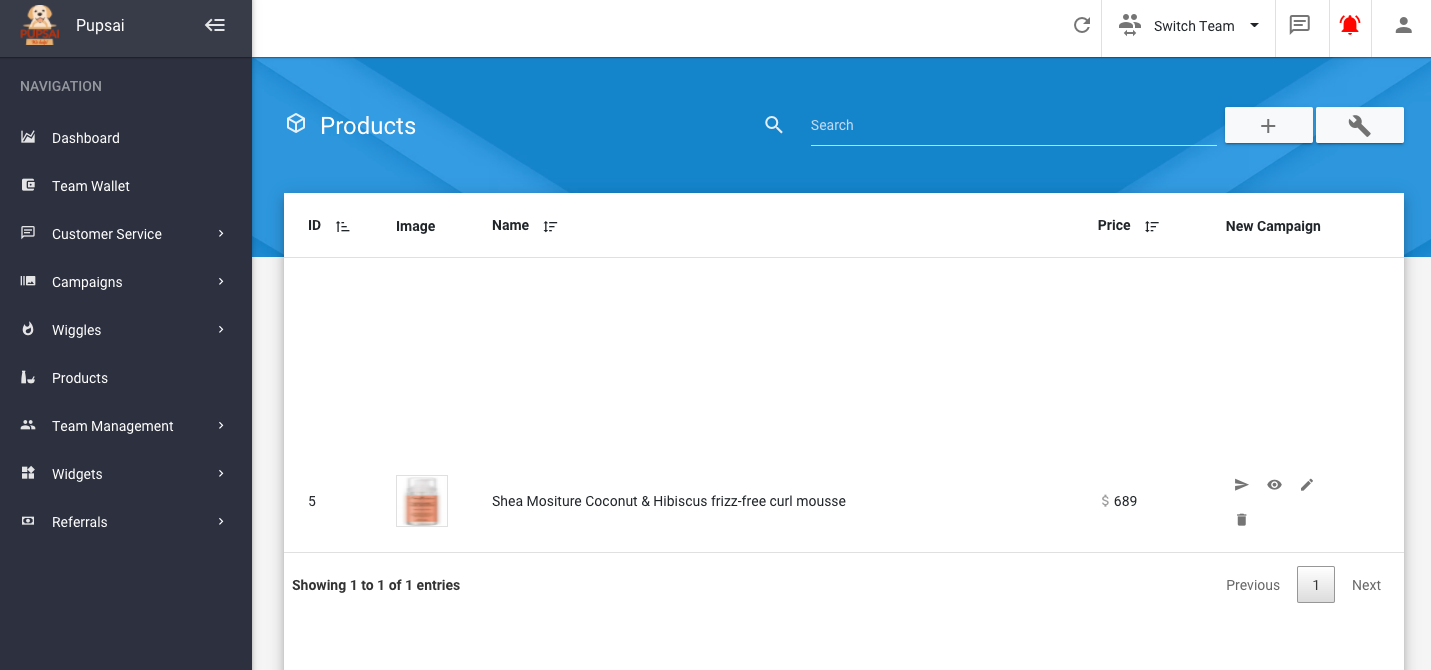
- Click the plus icon at the top right of the page to add a new product
- You’ll be redirected to the “New Product” page
- Enter the details requested for your product
- Click the “Save” button
- An orange button to preview how your customers will see the product will appear in the bottom right of the screen, you may view it if desired
- Click the back arrow to view a list of all your products, where you can also edit, delete or schedule campaigns