
How to Create and Use Form Responses in Pupsai
What are Form Responses?
Form responses allows you to create common questions you would like to ask your customer. Each form response is triggered by a question your customer asks (which you would’ve provided), and Pupsai will ask follow up questions (which you would’ve provided). You can also use this feature to create partially complete forms to have before starting an order or process. When a form response is triggered, you can have the customer’s responses e-mailed to you. You may also download or export them for further processing.
Creating a Form Response
To get started:
- Login into your Pupsai account. Click here for reference.
- From the left navigation menu, select the “Customer Service” menu option.
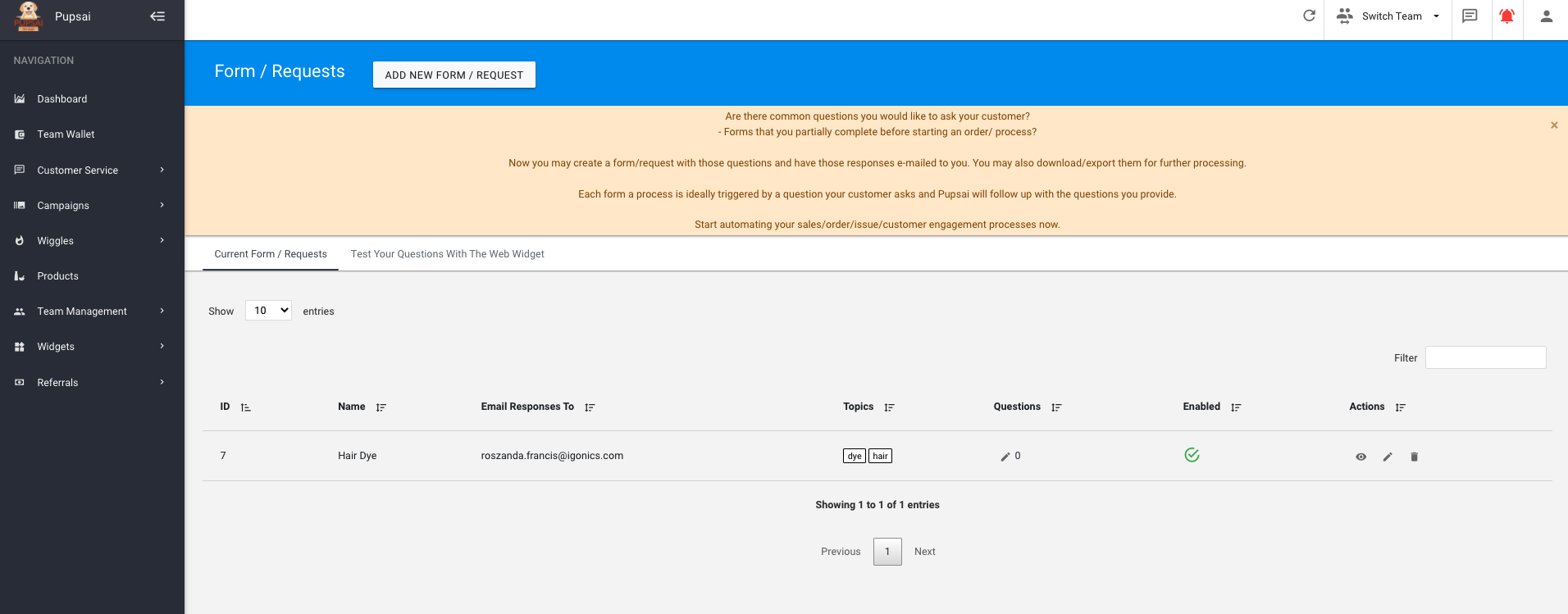
- Select the “Forms / Requests” menu option.
- Click the “Add New Forms / Request” button. A form will pop-up.
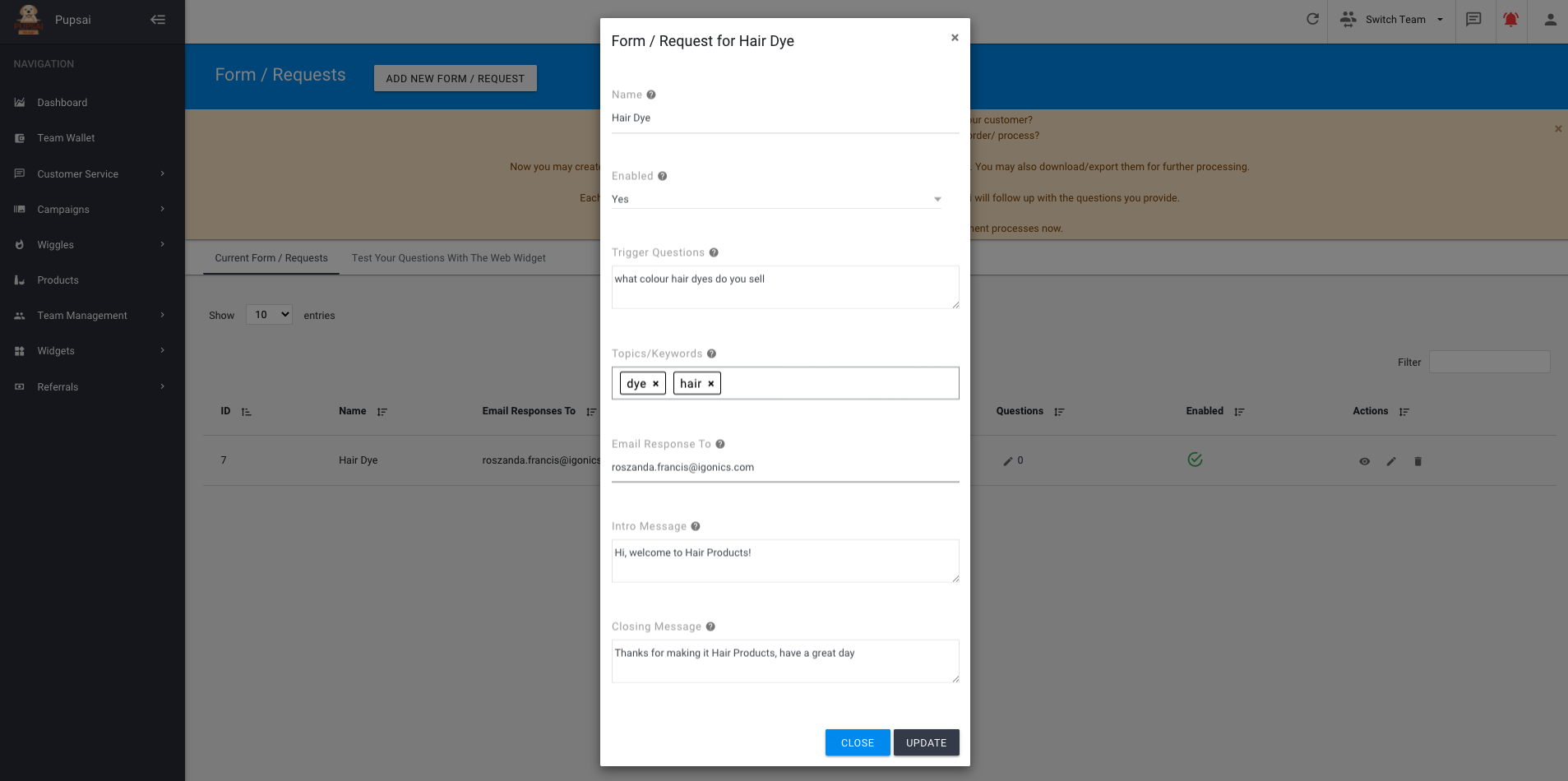
- Enter the required details, as demonstrated below:

- Click the “Add button” to save your new form response.
Adding or Viewing Follow-Up Questions to Form Responses
Once the customer asks the trigger question we just created above, Pupsai will ask these follow-up questions to give your customers a better experience.
- From the list of form responses, click the eye icon located in the “Actions” column for the form response of your choice.

- You’ll be redirected to the page below. Click the “SHOW EDITOR” button at the top right of the page to begin adding follow-up questions.
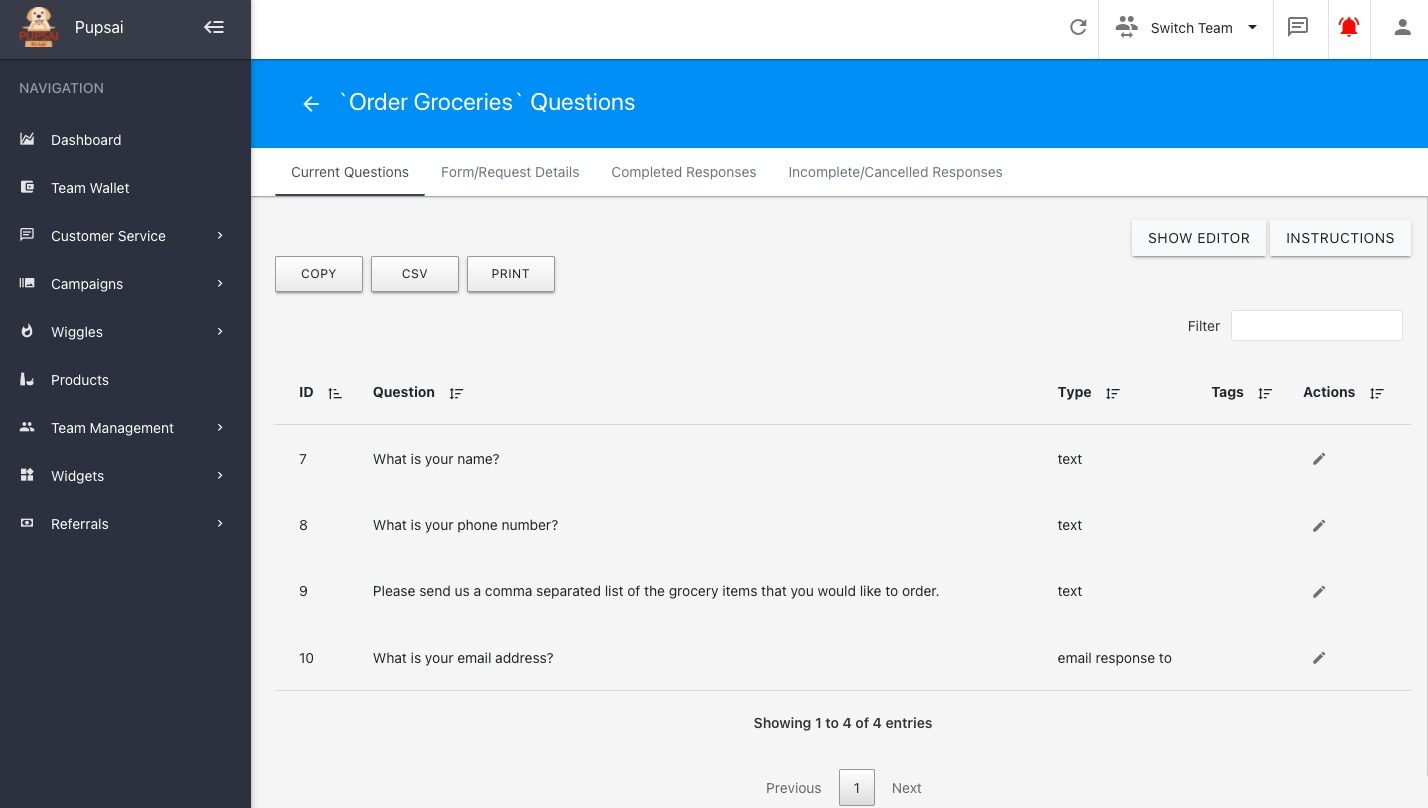
- You’ll be redirected to the editor seen below.

- Once here, you’ll have the option to create 3 types of questions and link them in the order of how you want Pupsai to ask them (i.e. 1st, 2nd, 3rd). To begin:
- Right click anywhere in the editor
- You’ll be presented with the 3 types of questions you can create:
- “Add Written Prompt” – customers’ answers to these questions will just be saved to the message log
- “Add Options Prompt” – these are questions customers will answer “yes” or “no” to
- “Add Email Prompt” – customers’ answers to these questions will be sent to your listed email
- Once you’ve selected one of the 3 options listed above, a draggable text box with a predefined question will appear. Click the dashed circle at the beginning of the question to overwrite with your desired question.
- The grey circles at either sides of the text box is used to order the questions. Click and drag the lines to link the boxes. The first question should be linked to the “Start” box and the last question should be linked to the “End” box. See image below for reference.
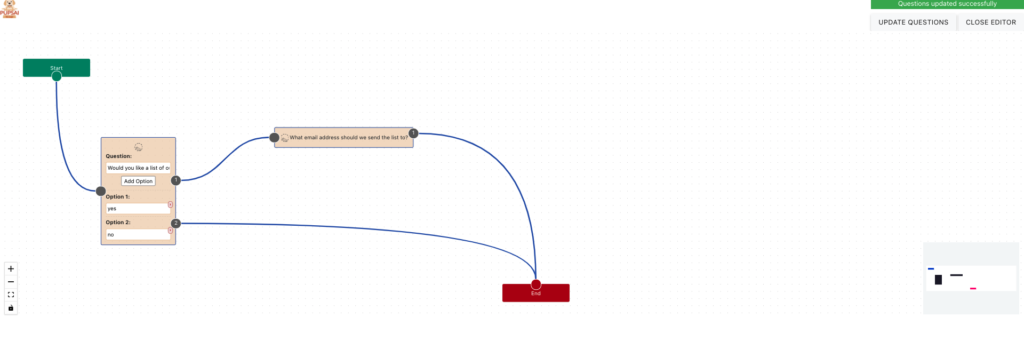
- To delete or edit an existing text box, right click on the desired text box and select the option from the menu presented
- After adding and linking all your follow-up questions, click the “UPDATE QUESTIONS” button at the top right of the page
- Click the “CLOSE EDITOR” button at the top right of the page to exit the editor and return to the follow-up questions page, as shown below:
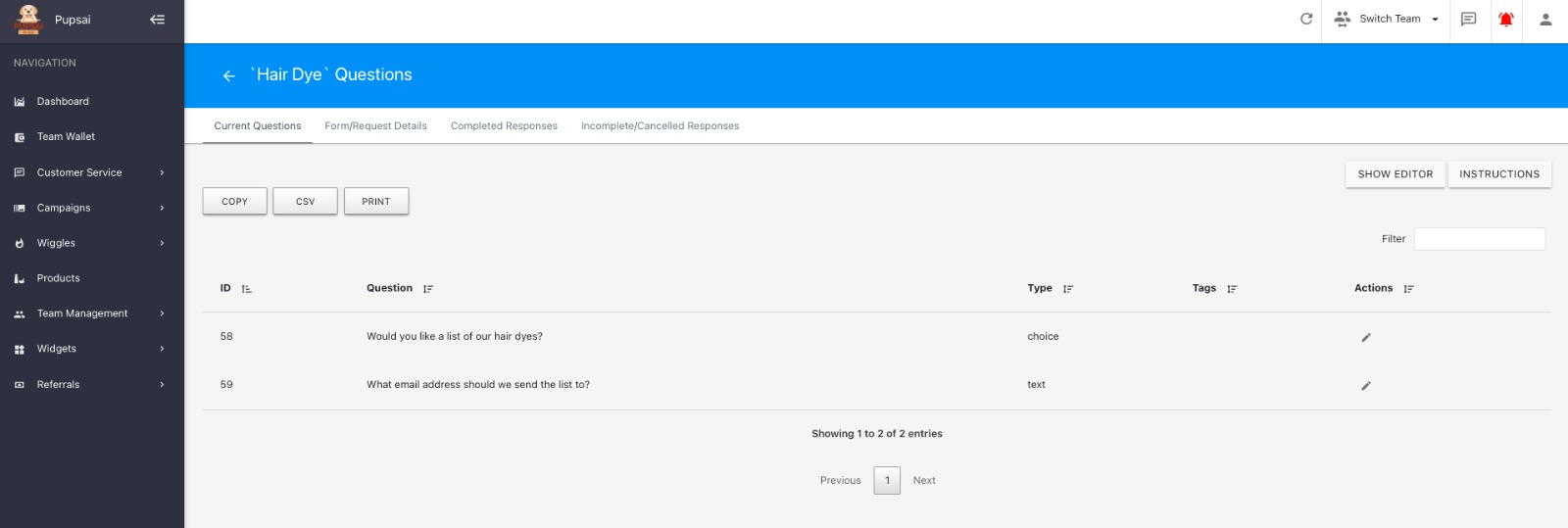
- Click the back arrow in the top left of the window to return to the list of current forms/requests.
Editing Form Responses
- From the left navigation menu, select the “Customer Service” menu option.
- Select the “Forms / Requests” menu option.
- From the list of form responses, locate the one you want to edit and click the pencil icon located in the “Actions” column.
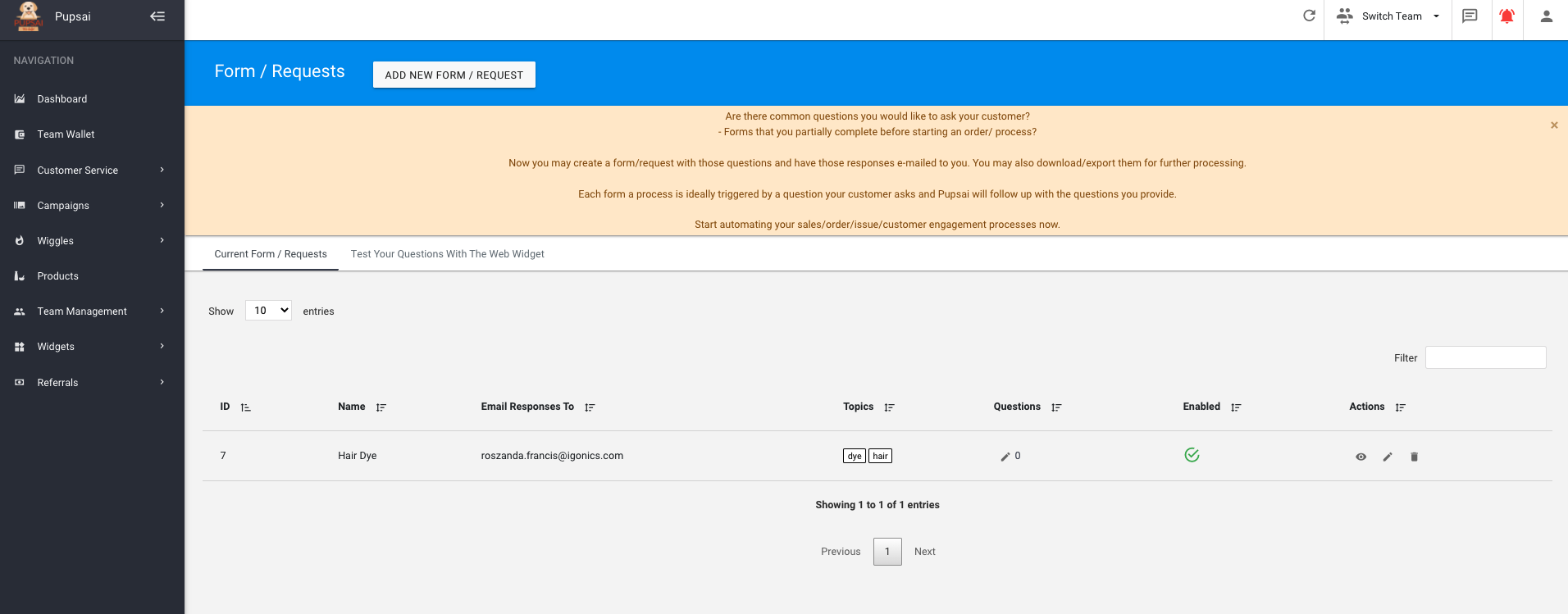
- From the pop-up menu, edit your desired fields.
- Click the “UPDATE” button to save the changes.
Testing Form Responses with Web Widget
- From the left navigation menu, select the “Customer Service” menu option.
- Select the “Forms / Requests” menu option.
- Select the “Test Your Questions With The Web Widget” tab.
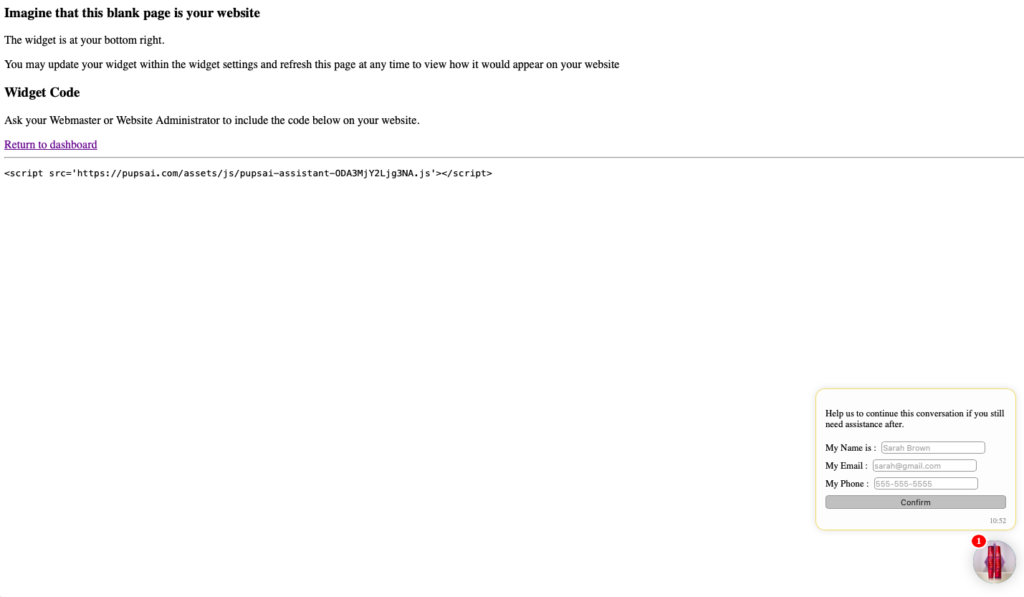
- You’ll be redirected to the widget preview page.
- Click the widget located in the bottom right of the screen.
- Enter the question used to create the form response, or a question containing the keywords defined.
- Pupsai will ask the second question you defined.
- Give an answer to the question
