
Use Form Responses From Pupsai to Create a Contact in Survey Monkey
To get started, you must have:
- A Pupsai account. If not, please refer to Register for Pupsai.
- You’ll also need to be subscribed to Pupsai. Please refer to Subscribing to Pupsai.
- A Zapier account. If not, please refer to Sign-up for Zapier.
- A Survey Monkey account. If not, please refer to Create a Survey Monkey Account.
Creating a Form Response in Pupsai
- Please refer to How to create a Form Response.
Connecting Pupsai to Pull the Data
- In a new tab, login into your Zapier account. Click here for reference.
- From the left navigation menu, select the “Zaps” menu item.

- Click the “Create Zap” button. You will be redirected to a page resembling the one below:

- In the top left of the window, click in the “Name your zap” section and type a meaningful name for zap.
- In the “When this happens …” section, start typing “Pupsai” in the “Choose App & Event” search bar.
- Select the Pupsai icon when it appears on the screen.
- From the “Choose Trigger Event” drop down list, select “New Form Response”.
- Click the “Continue” button.

- From the “Pupsai (1.0.0) account” drop down list, select your Pupsai account.
- If you are not seeing your account that means you are not signed into your Pupsai account. To do so, select “+ Add a New Account” from the bottom of the drop down list.
- You will be redirected to sign into your Pupsai account. Click here for help logging in.
- Once logged in, you’ll be redirected to your Pupsai dasboard. Close the tab and head back to the create a new zap page.
- For a second time, select “+ Add a New Account” from the bottom of the drop down list.
- You will be redirected to Pupsai.com, where Zapier will request permission to access your account.
- Click the “Authorize” button to continue. You’ll be redirect back to the create a new zap page.
- Click the “Continue” button.
- From the “Request Process Form” drop down list, select the desired form response.
- If you are not seeing the desired response, select the “LOAD MORE” button.
- Click the “Continue” button.
- You’ll be redirected to the “Find Data” section to test that your form response was created successfully pulled from your Pupsai account.

- Click the “Test trigger” button.
- If the form response was successfully pulled from your Pupsai account, you should see a “We found a form response!” message onscreen.
- At the bottom of the screen, you’ll see a box with “Zap is ready – now turn it on!”
- Click the toggle button to turn the zap on.
- To exit, use the back arrow in the top left of the window.
Connecting Survey Monkey to Create a Contact
- In the “Action” section, start typing “Survey Monkey” in the search bar.
- Select the Survey Monkey icon when it appears on the screen.
- From the “Action Event” drop down list, select “Create Contact”.
- Click the “Continue” button.
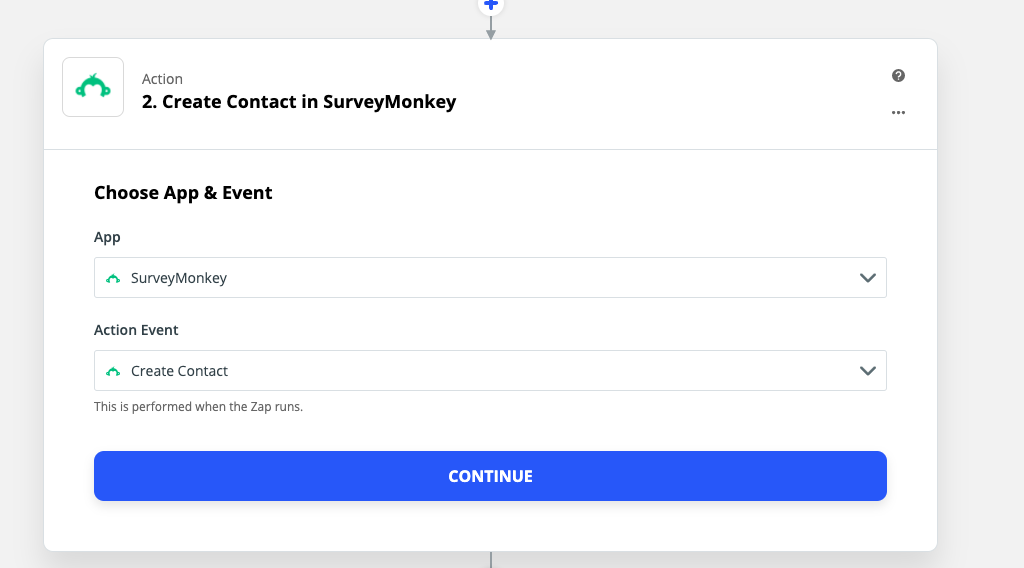
- Click the “Sign in to SurveyMonkey” button. You will be redirected to sign into your Survey Monkey account.

- After successfully signing into your Survey Monkey account:
- Choose your Survey Monkey account from the “Choose Account” section.
- Click Continue.

- In the “Customize Card” section:
- Customize the required fields as you like. See picture below for an example.

- Click the “Continue” button. You’ll be redirected to the “Send Data” section to test that your Trello Board was connected successfully.
- Click the “Test & Continue” button.
- If successfully connected, you should see a “Test was successful!” message onscreen.
- At the bottom of the screen, you’ll see a box with “Zap is ready – now turn it on!”
- Click the toggle button to turn the zap on.
- To exit, use the back arrow in the top left of the window.
Verifying the Form Response was Saved in Trello
- Login to the Survey Monkey account you used to create the zap.
- You should see the new contact added to the list you specified
Automatically Populating the Contacts List
Now that the zap is activated, once a form response was triggered in your Pupsai account, Zapier will automatically add a new contact in your account.